As an Amazon Associate I earn from qualifying purchases. This link may earn PickScoreLab a commission at no additional cost to you.
Fast diagnosis: The MK250 is two Bluetooth devices, not one combo connection. The keyboard appears as Logi K250 and the mouse as Logi M196. If only one half works, troubleshoot that device independently: confirm power, hold its pairing button for three seconds, remove a stale Bluetooth entry, and pair it again from the computer’s settings.
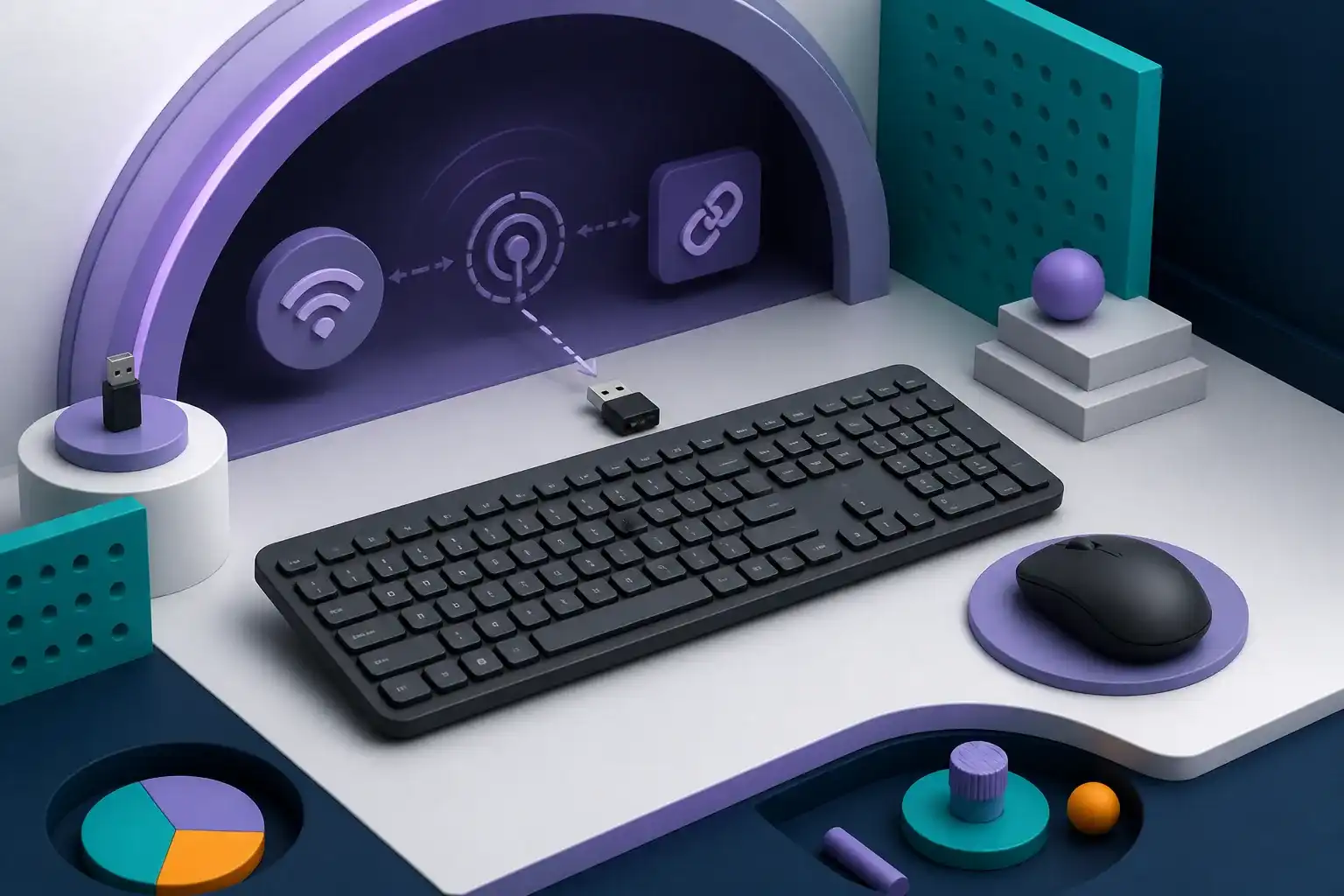
Logitech’s MK250 does not use a shared USB receiver. The keyboard and mouse each have their own Bluetooth radio, battery, power state, pairing button, and saved connection. That architecture explains the most common confusion: pairing the keyboard does not automatically pair the mouse.
This guide follows Logitech’s current setup flow and adds a conservative isolation order. Menu names vary among Windows, macOS, and ChromeOS releases, so use the operating system’s current Bluetooth documentation when a setting has moved.
First identify which half is failing
Use a text field and ordinary pointer movement to separate the symptoms:
| Symptom | Start with |
|---|---|
| Mouse works, keyboard does not type | K250 keyboard power and pairing |
| Keyboard works, mouse does not move | M196 mouse power and pairing |
| Neither device appears | Computer Bluetooth, airplane mode, policy, and both batteries |
| Device appears but will not finish pairing | Remove saved entry, restart pairing mode, retry close to computer |
| Keyboard accepts letters but not the pairing code | Type the displayed digits on K250, then press Enter |
| Connection fails after sleep | Power cycle device, toggle Bluetooth, test current OS updates and power settings |
Avoid changing several variables at once. If the mouse is healthy, leave it connected while fixing the keyboard. A device-by-device approach reveals whether the problem follows one peripheral or the computer’s entire Bluetooth stack.
Correct first-time MK250 pairing
Pair the K250 keyboard
- Remove the battery pull tab on a new unit or confirm two AAA batteries are installed with correct polarity.
- Turn the keyboard on. Logitech says its green indicator should blink when it is ready to pair.
- On Windows, accept Swift Pair if offered; otherwise open Bluetooth settings and add a device.
- Select Logi K250, not M196 or a similarly named older keyboard.
- If the computer displays random digits, type those digits on the K250 and press Enter.
The final Enter press is part of the authentication step. Typing the digits into another computer keyboard or clicking them on screen does not complete Logitech’s documented flow.
Pair the M196 mouse
- Confirm one AA battery is installed with correct polarity.
- Turn the mouse on; Logitech documents a red indicator for its power/pairing state.
- Open Bluetooth settings and add a device.
- Select Logi M196.
The mouse has no numeric-code typing step. If K250 is connected but M196 is absent, repeat only the mouse process.
Put either device back into pairing mode
Logitech instructs users to hold the device’s pairing button for about three seconds until its LED starts blinking. The keyboard control is on the bottom with the power function; the mouse control is also on its underside.
A short press changes power state. A long press starts pairing mode. If the LED does not respond:
- Check battery orientation.
- Replace the cells with known-good batteries.
- Turn the device off, wait several seconds, and turn it on again.
- Hold the correct button continuously for the full three seconds.
- Test close to the computer, away from a crowded radio environment.
Do not search for a USB receiver or install Unifying software. MK250’s documented connection is Bluetooth Low Energy.
Remove a stale saved connection
If Logi K250 or Logi M196 appears as saved but will not connect, remove only that entry from the operating system’s Bluetooth device list. Then:
- Turn the affected peripheral off.
- Restart Bluetooth on the computer, or reboot if the Bluetooth service is unresponsive.
- Turn the peripheral on and hold its pairing button for three seconds.
- Add it again from Bluetooth settings.
This clears the computer-side record; it does not prove the hardware is defective. Corporate device management can also block removing or adding peripherals, in which case an administrator needs to confirm policy.
When the keyboard code is rejected
Pairing-code failure is usually procedural rather than a layout problem. Confirm that:
- Logi K250 is the selected device.
- The digits are entered on the K250 itself.
- Enter is pressed on the K250 after the digits.
- The pairing prompt has not expired.
- Num Lock or a regional layout is not changing how digits are entered; use the top number row if uncertain.
Cancel the prompt and restart pairing mode if the code expires. Do not repeatedly type an old code; the next attempt can generate a new one.
If neither device can connect
When both fail, test the shared conditions before blaming two peripherals at once:
- Confirm the computer supports Bluetooth Low Energy.
- Turn off airplane mode and enable Bluetooth.
- Check whether an employer, school, virtual desktop, or kiosk policy blocks Bluetooth input.
- Disconnect unnecessary Bluetooth devices temporarily if the host has reached a practical limit.
- Install current operating-system and computer-maker Bluetooth updates.
- Reboot after an adapter or driver update.
- Test one MK250 device at a time.
Logitech lists Windows 10/11 or later, macOS 12 or later, and ChromeOS in the cited MK250 specification. A different platform may discover the device but still fall outside the formal list.
Connection drops, delayed wake, or intermittent input
First replace batteries and move the device closer to the computer. Then reduce nearby 2.4 GHz radio congestion and test without a metal barrier between the peripheral and the computer.
Bluetooth shares the 2.4 GHz band with many Wi-Fi and peripheral devices. A temporary improvement after moving closer suggests a radio-path issue, but it does not identify one exact source. Compare behavior with:
- the laptop lid open and computer on the desk;
- nearby wireless accessories temporarily turned off;
- the system connected to a different Wi-Fi band when practical;
- a second supported computer.
Testing another computer is an isolation step, not a permanent fix. If the same device fails on two supported systems with fresh batteries, the peripheral becomes a more likely cause.
What not to do
- Do not install old Logitech Connection Utility or Unifying software for MK250 pairing.
- Do not expect the keyboard and mouse to pair as one Bluetooth entry.
- Do not assume a short power-button press activates pairing mode.
- Do not erase every Bluetooth device when only K250 or M196 is failing.
- Do not describe a successful re-pair as a permanent hardware repair.
- Do not open the device or attempt liquid cleanup while batteries remain installed.
When to consider replacement or support
Contact Logitech support or use the seller’s return process after documenting:
- The exact failing component: K250 keyboard or M196 mouse.
- Battery replacement and polarity check.
- Whether its pairing LED activates.
- The supported operating system and version.
- Whether the device fails on a second supported computer.
- Any visible damage, liquid exposure, or missing battery contact.
This evidence avoids vague “combo not working” reports and helps separate host Bluetooth problems from one failed peripheral.
If the connection design itself is the mismatch, read the full Logitech MK250 review and our MK250 versus MK470 comparison. A receiver-based combo may fit a computer with unreliable or restricted Bluetooth, while MK250 remains useful when saving the USB port is the priority.
Frequently asked questions
Where is the MK250 USB receiver?
There is no receiver in the documented MK250 package. K250 and M196 each connect through Bluetooth Low Energy.
What names should appear in Bluetooth settings?
Logitech’s setup guide identifies Logi K250 for the keyboard and Logi M196 for the mouse.
How do I reset MK250 pairing?
For the affected device, remove its saved Bluetooth entry, turn it off and on, then hold its pairing button for three seconds until the LED blinks. Add it again in the operating system. Logitech does not describe one master reset for both devices together.
Why does the keyboard work but not the mouse?
They are separate Bluetooth devices. Pair M196 independently and check its AA battery, power state, pairing LED, and saved device entry.
Final checklist
- Identify K250 or M196 as the failing device.
- Install known-good batteries with correct polarity.
- Hold that device’s pairing button for three seconds.
- Remove only its stale Bluetooth entry.
- Pair K250 and M196 separately.
- Enter the K250 code on K250 and press Enter.
- Verify supported OS, Bluetooth policy, and current updates.
- Test a second supported computer before declaring hardware failure.
The most effective MK250 fix is usually the least dramatic one: isolate the keyboard from the mouse, restore pairing mode on the affected device, and rebuild only that Bluetooth connection.
Check the Logitech MK250 listing
Confirm that the listing is the Bluetooth MK250 with K250 keyboard and M196 mouse. Check the exact ASIN, color, regional layout, seller, and return terms before ordering.
Check the Logitech MK250 on Amazon(paid link)As an Amazon Associate I earn from qualifying purchases. This link may earn PickScoreLab a commission at no additional cost to you.
Sources and further reading
- Logitech Support — Getting Started with MK250
- Logitech Support — MK250 specifications
- Logitech Support — Bluetooth troubleshooting
Specifications and standards can change. Check the device maker’s current documentation before purchasing.