As an Amazon Associate I earn from qualifying purchases. This link may earn PickScoreLab a commission at no additional cost to you.
Mouse comfort depends on the relationship between hand, device, desk, keyboard, and task. A shape marketed as “ergonomic” is not automatically comfortable for every hand, and a technically precise sensor does not fix a mouse positioned too far to the side.
OSHA treats selection and placement of a pointer as part of the complete workstation. Start by reducing reach and awkward wrist position, then compare shapes and features.
Measure the workspace before the hand
Place the keyboard directly in front of you. The mouse should sit close beside it at a similar height so the elbow can remain near the body. A full-width keyboard with a number pad pushes a right-handed mouse farther outward. If the number pad is rarely used, a compact keyboard or separate movable number pad may reduce that reach.
Check:
- available side-to-side movement;
- desk depth and edge pressure on the forearm;
- keyboard width;
- chair armrest interference;
- mouse-pad or desk surface;
- cable and receiver location.
A large mouse may fit the hand but not a narrow keyboard tray. A trackball reduces desk movement but has its own learning curve and finger workload.
Hand size is a filter, not a guarantee
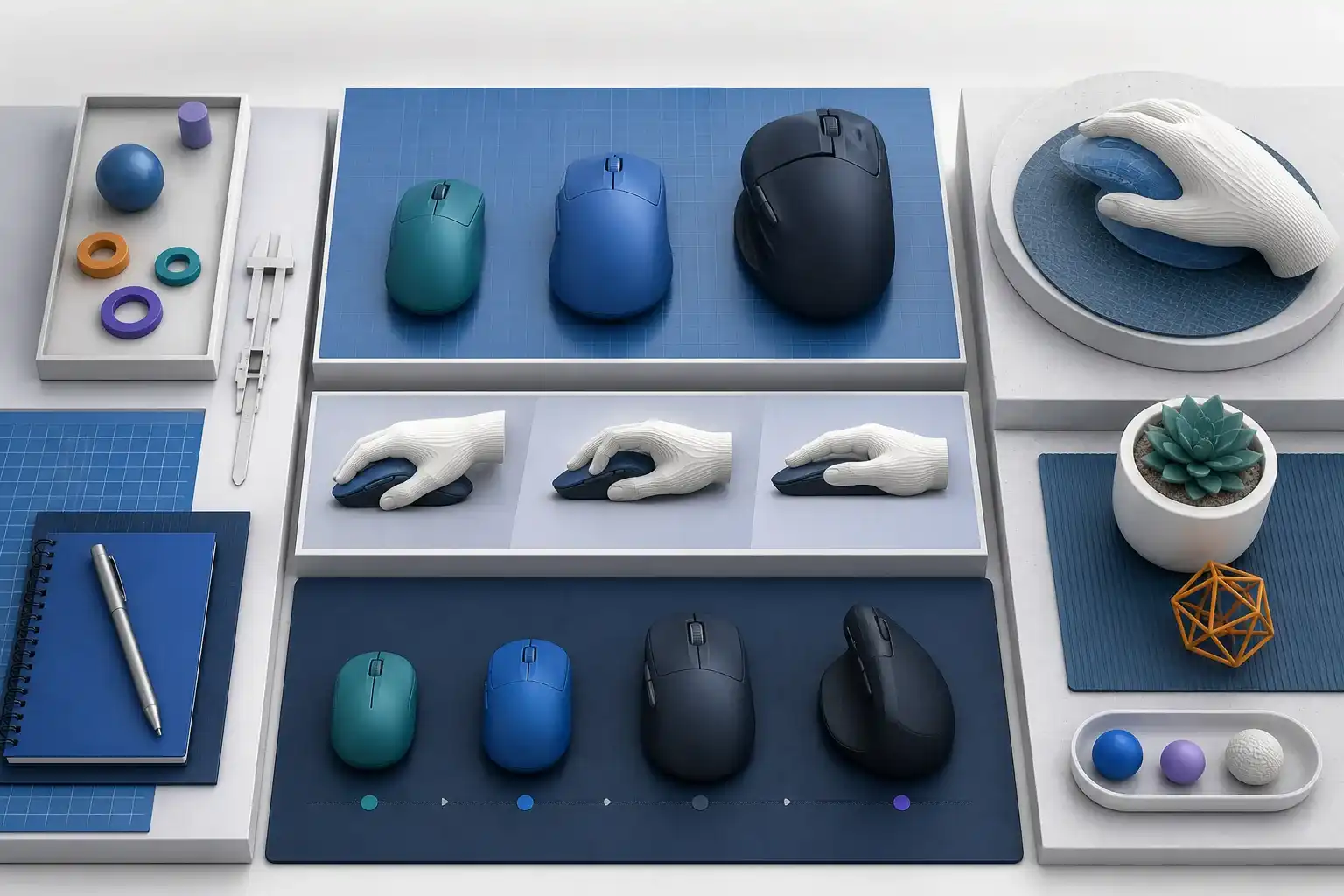
Measure from the wrist crease to the tip of the middle finger and across the widest part of the palm. Compare those dimensions with the mouse length, width, and height when a maker publishes them.
A mouse that is too small can encourage a tight grip or excessive finger curl. A mouse that is too large can make buttons hard to reach or force the fingers apart. Shape matters as much as length: a high rear hump supports the palm differently from a low, centered profile.
If possible, use a retailer with a practical return period and evaluate the mouse during normal work. Comfort cannot be reliably reduced to one hand-length chart.
Palm, claw, and fingertip descriptions
Grip labels describe tendencies rather than rigid categories.
- Palm-oriented: more hand contact, often with a fuller rear shape.
- Claw-oriented: palm or rear-hand contact with more arched fingers.
- Fingertip-oriented: most control comes from fingers with limited palm contact.
People change grip with task, speed, and fatigue. Do not buy solely because a product page assigns a grip label. Inspect where the hump sits, how the sides taper, and whether the primary buttons begin under the natural finger position.
Conventional, vertical, and trackball designs
A conventional mouse keeps familiar controls and offers the widest range of sizes. A vertical mouse rotates the forearm toward a handshake-like position, but angle, width, and button reach vary. A trackball keeps the device stationary and moves the pointer through a ball controlled by fingers or thumb.
Alternative designs can help a person change movement patterns, but no category is universally preventive or therapeutic. Introduce a new design gradually, adjust pointer speed, and stop if discomfort increases. Persistent symptoms require advice beyond a shopping guide.
Left-handed and shared use
An ambidextrous shell may be physically usable with either hand, but side buttons and software may still favor the right. A contoured right-handed mouse is not a left-handed solution.
Check whether:
- button functions can be swapped in the operating system;
- side buttons exist on both sides;
- configuration is stored on the device or only in software;
- multiple user profiles are practical;
- the receiver can be replaced or paired again.
Some users alternate hands to distribute work. A symmetrical mouse and accessible shortcut settings can support that approach.
Bluetooth or USB receiver
Bluetooth avoids occupying a USB port and can switch among devices. A dedicated receiver may offer faster wake behavior, simpler pairing, or more consistent performance in a busy wireless environment.
Consider:
- available USB-A or USB-C ports;
- receiver storage inside the mouse;
- ability to purchase and pair a replacement receiver;
- number of switchable devices;
- operating-system Bluetooth support;
- security and firmware update process;
- whether a dock hides or shields the receiver.
Placing a receiver close to the mouse can help in a crowded radio environment. A receiver plugged behind a metal desktop computer or dock may have a less direct path.
Sensor, speed, and surface
For office work, controllable cursor movement matters more than an extreme sensitivity number. Higher sensitivity can reduce arm travel but requires fine control. Operating-system acceleration and application settings also change the experience.
Check whether the mouse tracks on your desk or intended pad. Glass and glossy surfaces can challenge some sensors. Adjustable sensitivity is useful when moving between a laptop screen and large or multiple monitors.
Polling-rate and gaming specifications may not produce a meaningful productivity improvement, and high settings can reduce battery life. Choose the lowest complexity that makes the pointer feel stable and responsive.
Buttons and scroll behavior
Extra buttons are valuable only when they reduce repeated actions you perform. Common useful assignments include back, forward, application switching, paste, or a meeting mute shortcut.
Inspect:
- click force and noise;
- accidental side-button activation;
- wheel step definition;
- horizontal scrolling;
- free-spin versus ratcheted scroll;
- software support on every work computer;
- onboard memory for restricted computers.
A configuration application may not be installable on an employer-managed device. Confirm whether basic functions work without it.
Battery and service life
Rechargeable designs reduce disposable-battery use but eventually depend on an internal battery and charging port. Replaceable batteries can be swapped quickly and may run for long periods.
Check whether the mouse works while charging, where the port sits, how battery level is reported, and whether sleep/wake behavior interrupts work. Also consider replacement feet, switches, and warranty support if the device is intended for daily use.
Decision checklist
- Mouse position keeps the elbow near the body.
- Keyboard width leaves adequate pointer space.
- Device dimensions and shape suit the hand without forced grip.
- Left-handed or shared use is genuinely supported.
- Connection method fits available ports and device switching.
- Receiver storage and replacement are understood.
- Sensor works on the intended surface.
- Pointer speed can be controlled across all displays.
- Buttons and software work on managed computers.
- Battery, charging, wake, and replacement needs fit the routine.
The useful question is not “which mouse is most ergonomic?” It is “which shape and placement let this person complete this work with the least unnecessary reach and tension?”
Compare wireless mice for desk work
Start with hand fit, grip, left- or right-handed use, receiver needs, Bluetooth support, controls, and battery preference.
Browse wireless mice on Amazon(paid link)As an Amazon Associate I earn from qualifying purchases. This link may earn PickScoreLab a commission at no additional cost to you.
Sources and further reading
- OSHA: pointer and mouse workstation guidance
- OSHA: keyboard placement and neutral wrist guidance
- OSHA: workstation evaluation checklist
Specifications and standards can change. Check the device maker’s current documentation before purchasing.