As an Amazon Associate I earn from qualifying purchases. This link may earn PickScoreLab a commission at no additional cost to you.
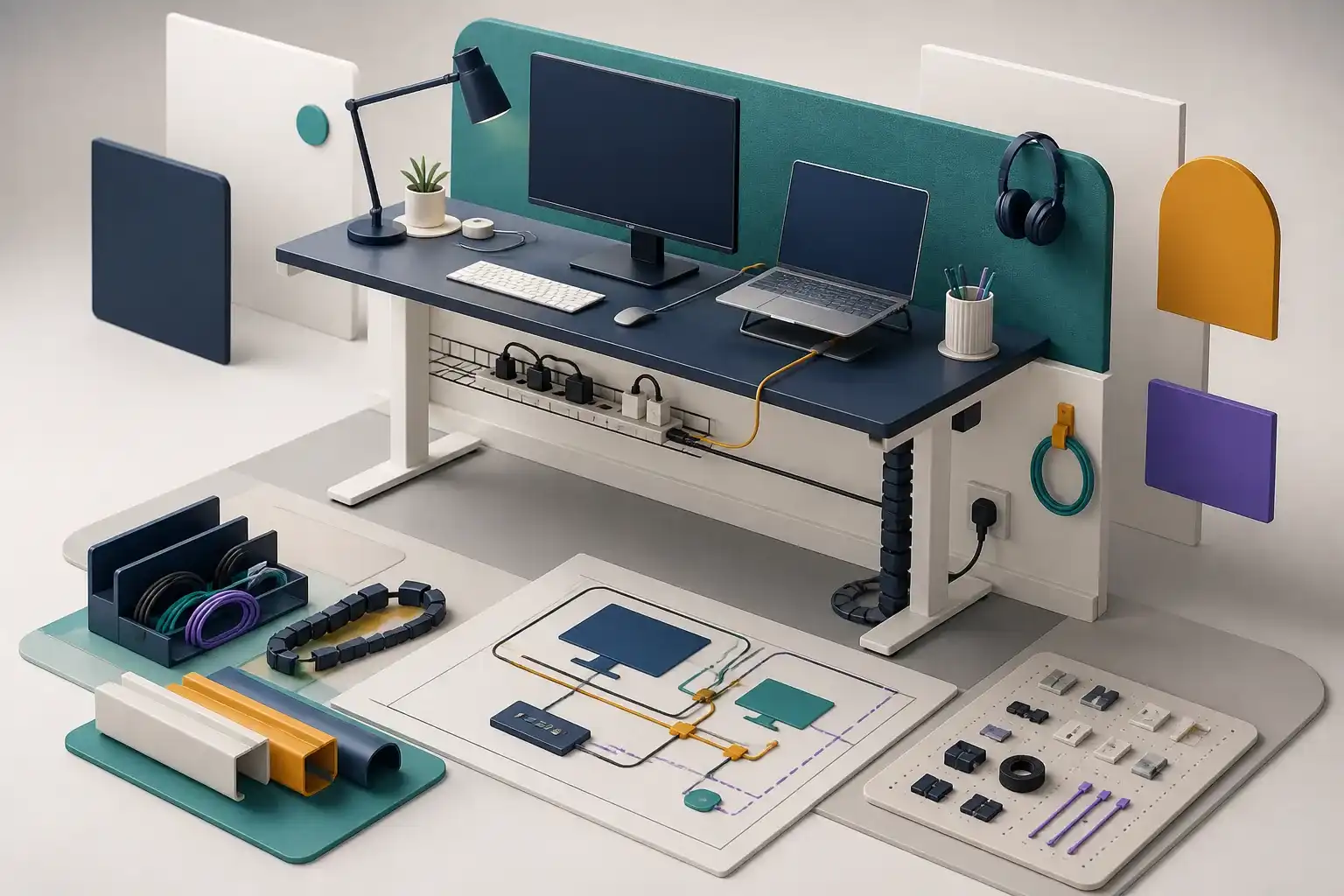
Cable management is not the act of hiding every wire. It is the design of a system that provides power, data, movement, cooling, and service without pulling on ports or creating a difficult repair.
The cleanest-looking installation can be the least maintainable when every cable is bundled tightly and no device can be replaced. Start with function, then reduce visual clutter.
Make a connection inventory
List each device, both endpoints, connector, cable length, and whether it moves.
| Device | From | To | Movement |
|---|---|---|---|
| Laptop | USB-C port | Dock | Connects daily |
| Monitor | Display output | Dock or computer | Mostly fixed |
| Monitor power | Adapter | Power strip | Fixed |
| Keyboard receiver | USB port | Wireless device | Fixed, needs radio path |
| Webcam | USB port | Monitor top | Moves with monitor |
| Headset charger | Power or USB | Headset | Accessed often |
This inventory reveals where a hub or dock reduces cables and where it only creates another adapter. It also prevents a cable tray from being installed over the exact port or power brick that needs regular access.
Separate fixed and user-access cables
Fixed infrastructure belongs under or behind the desk: monitor power, dock power, Ethernet, and permanent display cables. User-access cables should remain reachable: laptop upstream connection, phone charging, temporary storage, and headset charging.
Do not route a frequently used connector through a tight under-desk bundle. Repeated bending at the plug can damage the cable or device port. Use a clip or anchored extension that presents the connector without transferring pulling force to the computer.
Add service loops
A service loop is controlled extra length near a moving or serviceable device. It allows a monitor arm to extend, a standing desk to rise, or a dock to be pulled forward without unplugging.
Too little slack pulls on ports. Too much loose slack enters chair wheels, drawers, or arm joints. Move each adjustable device through its full range while watching the cable.
For a monitor arm:
- leave enough cable near the display for tilt and rotation;
- secure cables to fixed arm sections without crossing joints tightly;
- test maximum extension and minimum folded position;
- prevent plugs from carrying cable weight.
For a standing desk:
- test the complete height range;
- keep the wall connection long enough for the highest position;
- use a vertical cable path that cannot snag;
- mount power distribution to the moving desk only when the design and ratings allow it.
Power needs different care from data
Follow product and electrical safety instructions. The CPSC advises against overloaded cords, damaged products, covered cords that cannot release heat, and using extension cords as a substitute for adequate permanent wiring.
Practical rules include:
- use listed, correctly rated power products;
- keep power strips ventilated and accessible;
- do not conceal damaged plugs or warm adapters;
- avoid routing cords under rugs;
- do not daisy-chain power strips;
- keep high-wattage appliances off a computer-desk strip unless it is specifically appropriate;
- stop using a cable or adapter that becomes unusually hot, cracked, or intermittent.
Cable sleeves improve appearance but can trap heat around power adapters. Keep bricks and devices with ventilation outside dense bundles.
Mount the power source where plugs remain serviceable
An under-desk power strip can reduce the number of cables traveling to the wall. It should be secured using a method approved for the product and desk, with outlets and the switch still reachable.
Before mounting, check:
- cord length to the wall at all desk positions;
- plug orientation and adapter size;
- total load and product rating;
- ventilation;
- access to reset or switch controls;
- whether a large adapter blocks adjacent outlets.
Do not drill into or modify a power strip. Avoid mounting with a method that presses switches or damages the case.
Use the right organizer for each job
- Hook-and-loop ties: reusable, adjustable, and suitable for bundles that change.
- Cable clips: present individual user-access cables at the desk edge.
- Sleeves: group cables over a visible run while keeping ends accessible.
- Under-desk tray: supports power strips, docks, and surplus length when load and ventilation are appropriate.
- Raceway: creates a defined path on a wall or desk.
- Labels: identify both ends before troubleshooting.
Avoid tightening small plastic ties so strongly that they deform cable jackets. Separate sensitive or manufacturer-restricted cables when documentation calls for it.
Respect minimum bend and connector strain
High-speed and fiber cables can be sensitive to sharp bends. Power and display plugs can exert leverage on thin laptops. Use gentle curves and anchor the cable to the desk before it reaches a device port.
A right-angle adapter changes direction but adds another connection and can block adjacent ports. Use one only when its orientation, data, video, and power ratings match the requirement.
Protect wireless receivers
A small receiver hidden behind a metal dock, desktop computer, or dense cable bundle may have a poor path to the mouse or keyboard. If wireless behavior becomes intermittent, move the receiver closer with an approved extension or a front-facing port.
Do not place a 2.4 GHz receiver directly beside other busy wireless or high-speed USB devices if the manufacturer advises separation.
Build for maintenance
Take a photo after installation. Label both ends of similar cables. Keep a short record of which cable supports which display or power mode.
When adding a device:
- update the connection inventory;
- check power and port capacity;
- route the cable through the correct fixed or user-access path;
- retest every moving range;
- remove abandoned cables.
Cable-management checklist
- Every cable and endpoint is inventoried.
- Fixed and frequently accessed connections are separated.
- Moving devices have tested service loops.
- Plugs do not carry cable weight.
- Power products are listed, correctly rated, ventilated, and accessible.
- Cords are not daisy-chained, covered by rugs, damaged, or overloaded.
- Adapters remain cool and are not buried in dense sleeves.
- Bundles use reusable ties without sharp bends.
- Wireless receivers have a clear path.
- Both ends are labeled and the final layout is documented.
A maintainable desk may show a few deliberate cables. That is better than a perfectly hidden installation that strains ports, traps heat, or must be cut apart for the next upgrade.
Compare cable-management options
Use the planning checklist above to compare trays, sleeves, reusable ties, and under-desk mounting options. Confirm dimensions and mounting method on the current listing.
Browse cable-management products on Amazon(paid link)As an Amazon Associate I earn from qualifying purchases. This link may earn PickScoreLab a commission at no additional cost to you.
Sources and further reading
Specifications and standards can change. Check the device maker’s current documentation before purchasing.